Why do we need Realme USB Driver?
As you might know, the Realme parent company Oppo introduced the first Realme Device, i.e., the Realme 1 Smartphone, back in May 2018. Since then, the Realme devices have gained massive popularity; therefore, Oppo decided to make Realme a Stallone company; thus, they separated it from Oppo and created the Realme Chongqing Mobile Telecommunications Corporation, Ltd. Realme was founded by Li Bingzhong who was a former vice president of Oppo.
The Android-based Realme devices are compatible with the official Google ADB drivers. But in some cases, the ADB drivers fail to work when you try to flash or install Stock Firmware on the Realme Devices or while writing or fixing the IMEI number on the device.
And to fix this, Realme officially released the Realme Driver for Windows that allows you to connect your Realme Smartphone or Tablet to the computer. Once you have installed the Realme Driver on the computer, you can easily connect the Realme device to the computer.
It can be helpful if you are trying to transfer data from the Realme device to the computer or from the computer to the Realme device. You can also use it to sync the data between the computer and the Realme device.
You can also use the Realme Driver to update your device's OS. Whenever a Realme device is connected to the computer, a PC Suite application can easily allow you to update/upgrade the mobile OS.
Download Realme USB Driver for Windows
How to Install Realme USB Driver on Windows?
These are instructions on how to install the Realme Driver on a Windows computer, which helps you connect your Realme devices to the computer. You need a Windows computer (32-bit or 64-bit) to install the Realme Drivers.
- Download and extract the Realme Driver on the computer. If you have already downloaded the USB Driver, then SKIP this step.

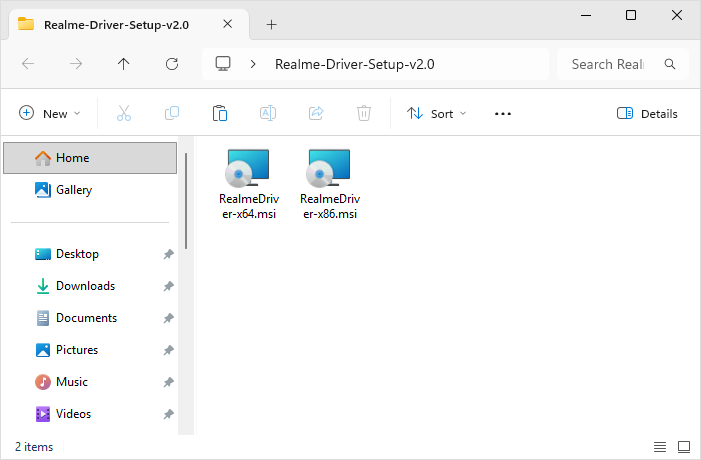
- After extracting the Realme Driver package, you will be able to see the following files:
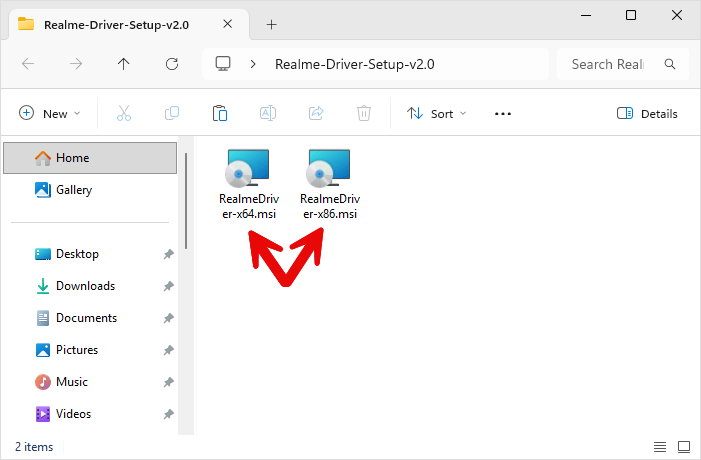
- Now, open RealmeDriver-x64.msi (64-bit) or RealmeDriver-x86.msi (32-bit):
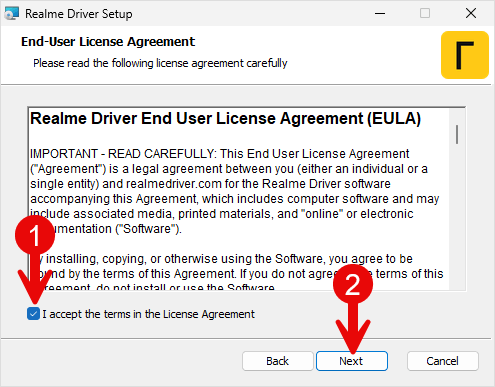
- Now, Click Next Button to Continue.
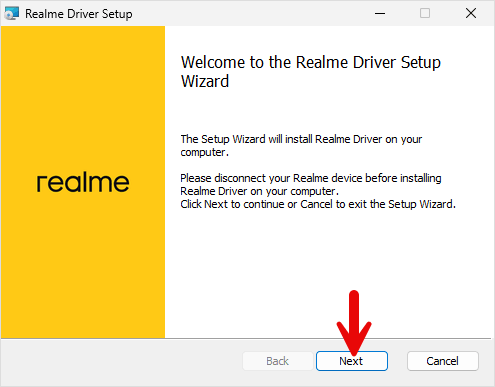
- Again, Click Next Button to Continue.
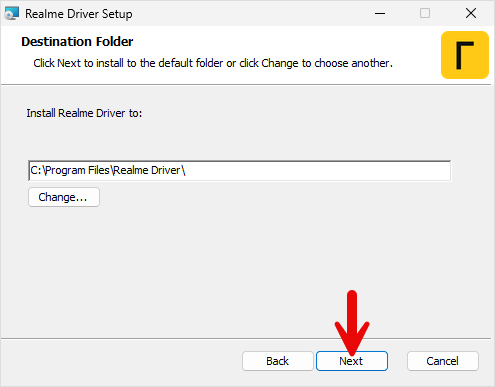
- Now, Choose the Installation Location (leave it as default) and Click Next Button.
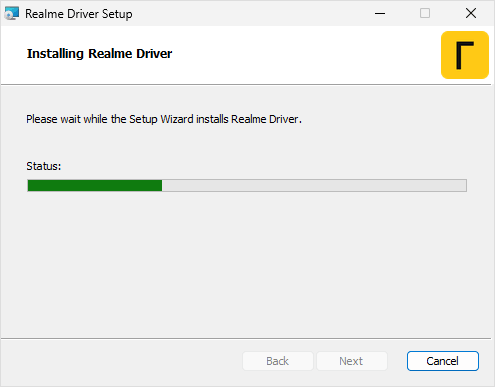
- Installation should finish within about a minute.
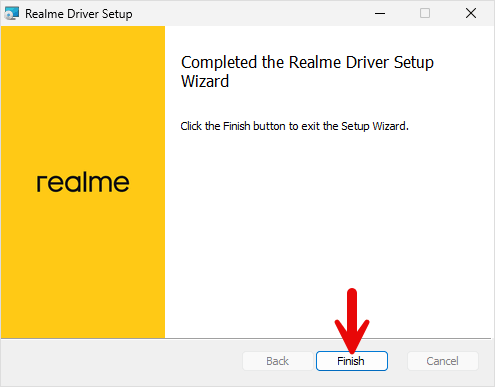
- Once Installation is Completed, Click Finish Button to Close the Setup.
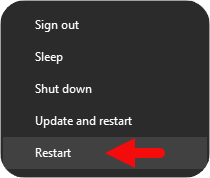
- Now, Restart your Computer. Once your computer is restarted, you can easily connect your Realme phones to a Windows computer.
Realme USB Driver – Help and Information
What is Realme USB Drivers?
Generally, a USB driver for a mobile phone is a small utility that allows users to connect their mobile devices to computers. In this case, we are dealing with Realme mobile devices. Application developers create mobile apps using a desktop computer, such as a Windows or Mac PC. It isn't easy to thoroughly test the software without installing it on a mobile device. Realme Drivers make this possible for Realme smartphones running Android OS.
For which platforms are Realme Android USB Driver available?
The Realme Driver for Realme Android devices is available for all computers running on Windows OS, whether a Windows XP or the latest Windows 11. Both 32-bit and 64-bit computers are supported. Unfortunately, it is unavailable for Mac OS X computers or macOS and Linux.
Is Realme USB Driver free?
Yes. The Realme Driver is 100% free since the Realme community officially releases it for the Realme Smartphone and Tablet users. Realme device owners can find the exact Realme drivers on the Realme Support forums.
Is Realme USB Driver safe?
Yes. The Realme Driver is 100% safe for the computer, laptop, and Realme mobile. Furthermore, since the Realme community officially releases the driver, it's 100% safe and secure to use on the computer.
How often is the Realme USB Driver updated?
There is no fixed schedule during which Realme updates the USB drivers. Instead, updates are released to fix bugs and improve performance when needed. All updates come directly from Realme.
How can I install Realme USB Driver?
You can install the Realme Driver by downloading the .exe file and installing the driver on the Computer. The installation process is quite similar to the standard Windows Application. You can follow the How to install the Realme Driver page to install the drivers correctly.
What devices does Realme USB Driver work with?
Realme Drivers are explicitly designed for Realme smartphones and tablets running on Google's Android operating system. The Realme Driver fully supports all Realme smartphones and tablets. It may or may not work for other devices.
Does Realme USB Driver require an internet connection to use?
No. The Realme Driver does not require an active internet connection to be used on a Windows computer or a laptop. You can connect Realme devices to the computer via a USB cable, so no Wi-Fi or Bluetooth connection is required.
Can I view the contents on my device with the Realme USB Driver?
No. Realme Driver provides only the necessary system files, allowing your Realme devices to communicate effectively with your computer. You cannot view the contents of your phone with the Realme Driver. Once you have installed the Realme Drivers on the computer, enable USB debugging on your Realme device and connect it to the computer via a USB cable. Through Windows Explorer, you can view the device contents.
Does Realme USB Driver work with both mobile and desktop devices?
The Realme Driver is designed to be installed on a Windows PC or a laptop to ensure seamless communication between your Realme device and the Windows computer. But, of course, you need an Realme device to work with a computer.
Where can I find the Realme Stock Firmware?
If you are looking for the Realme Stock Firmware (ROM) for Realme Smartphone and Tablets, then head over to Download Realme Firmware (ROM) page.